![Future Graphics in the [Mannaka]](images/console_mannaka_feature_graphics_en.png)
日本語で表示
| App information |


What is [Mannaka]?
| Application Name | Mannaka |
|---|---|
| Applications | This is a QR code reading app that only reads the QR code in the center of the screen. |
| Download the app | https://play.google.com/store/apps/details?id=com.mswss.mannaka |
[Mannaka] is a free QR code reading app. Its feature is that it only reads the QR code in the center of the preview screen. Among the many excellent QR code reading apps, there are some that invite you to the [App Store] even though you think you have read the QR code that goes to [Google Play].
These QR code reading apps read the QR code captured by the camera, not the QR code I want to read, but the one that is in a place that the app itself can read easily, and make a smug face.
And sometimes, even though I want to read a QR code, it reads an unrelated barcode around it and makes a smug face. I can't stand it anymore. I decided to make an app that can read only the QR code I want to read. This app only reads the QR code in the center of the screen. And it only has the function to copy the read URL and pass it to the browser. Because I only use this app to read the QR code and view the URL in the browser. I'm not young anymore, so if there are too many functions, I don't know what's what.
And sometimes, even though I want to read a QR code, it reads an unrelated barcode around it and makes a smug face. I can't stand it anymore. I decided to make an app that can read only the QR code I want to read. This app only reads the QR code in the center of the screen. And it only has the function to copy the read URL and pass it to the browser. Because I only use this app to read the QR code and view the URL in the browser. I'm not young anymore, so if there are too many functions, I don't know what's what.
[Operation instructions]
First time launch
This app uses the camera, so you need to give us permission to use your camera. If you don't give us permission, you won't be able to use this app.
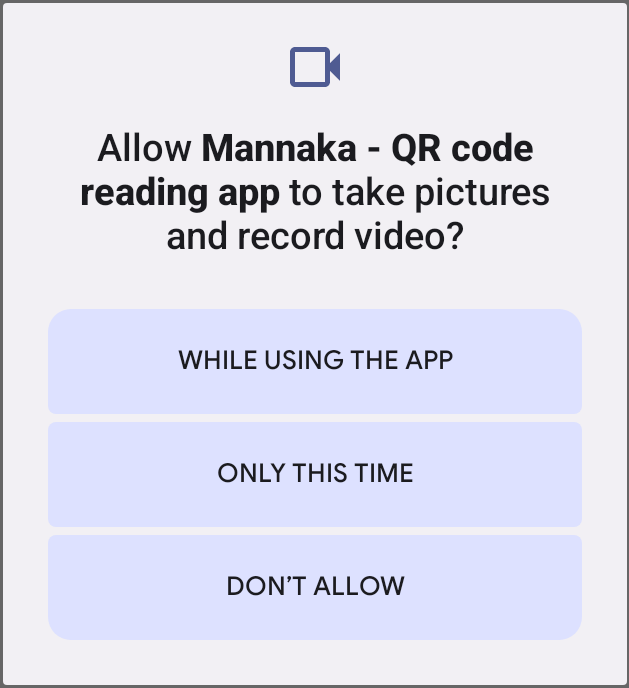 Tap [WHILE USING THE APP] to allow it. Then you will be able to use the app. Please proceed to the explanation of the reading screen.
If you do not allow this, the following dialog will be displayed and you will not be able to use the app.
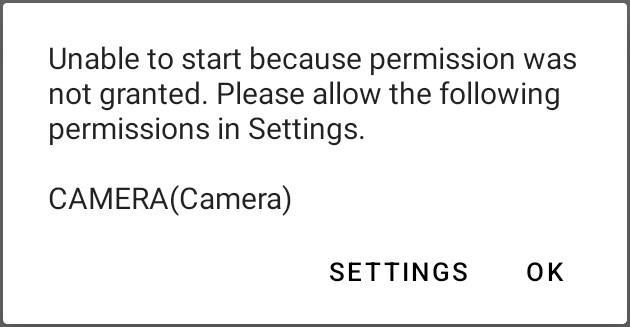 Tap [OK] to close the app.
If this dialog appears, you can grant permission manually by tapping [SETTINGS].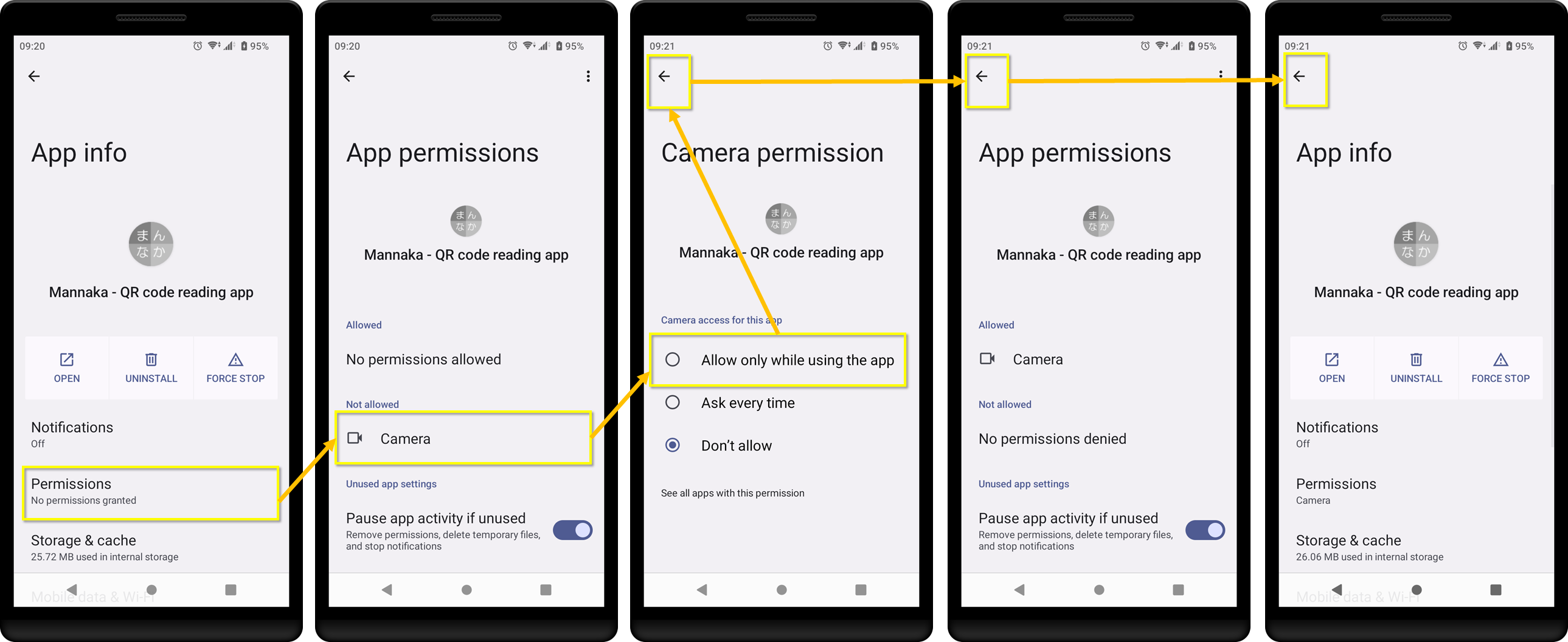 Tap [Permissions], tap [Camera], and then tap [Allow only while using the app].
Now that the permissions have been granted, tap [←], tap [←] again, and tap [←] again.
After exiting the settings screen, please start [Mannaka] again..
If you do not allow this, the following dialog will be displayed and you will not be able to use the app.
If this dialog appears, you can grant permission manually by tapping [SETTINGS].
Now that the permissions have been granted, tap [←], tap [←] again, and tap [←] again.
After exiting the settings screen, please start [Mannaka] again..
Reading screen
Once launched, the reading screen will appear, allowing you to read QR codes straight away.
 We will explain the screen display contents (A) to (E).
(A)TORCH
Switch for turning the torch on and off. If you use the torch in a dark place, it may become impossible to read the mark.
(B)ZOOM
Slider for zooming. Slide to the right to zoom. If you use this when you cannot get close to the target object, you may be able to read something that was previously unreadable.
(C)Camera read preview
A camera preview will be displayed, so adjust the position of your smartphone so that the QR code you want to read is aligned with the red cross line in the center.
This is the key feature of this app, so if the QR code is not under this cross line, it cannot be read.
Once read, it will be added to the history below and the reading content dialog screen will be displayed.
This is the key feature of this app, so if the QR code is not under this cross line, it cannot be read.
Once read, it will be added to the history below and the reading content dialog screen will be displayed.
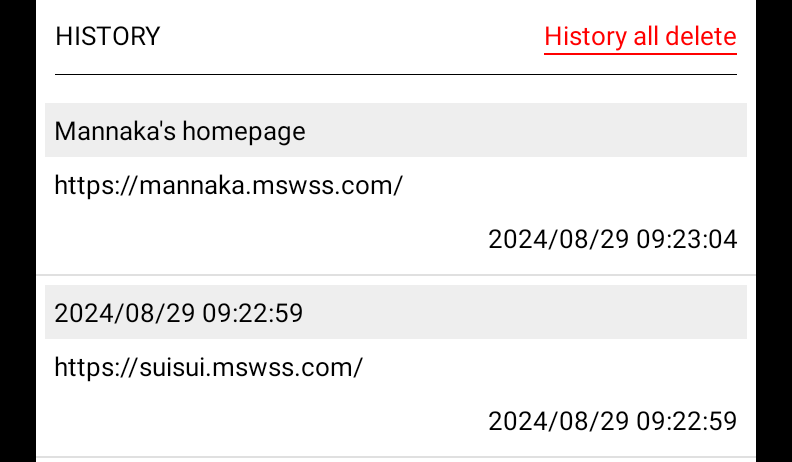
(D)HISTORY
The past reading history is displayed. The most recent scan is at the top, and it can be scrolled vertically.
The displayed information is the title, reading value, and reading date and time.
When you tap each line, the reading content dialog screen will be displayed.
The displayed information is the title, reading value, and reading date and time.
When you tap each line, the reading content dialog screen will be displayed.
(E)History Management
History Management submenu is displayed.
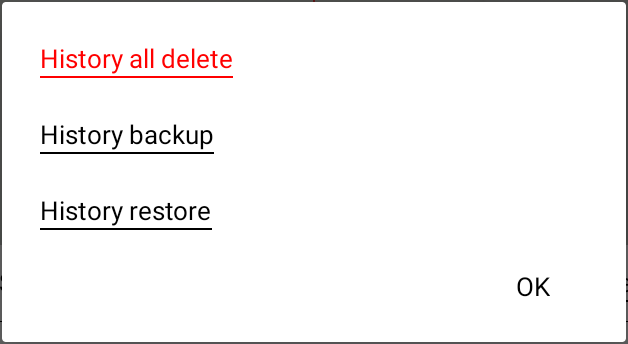
(E)History all delete
Tap to confirm twice and then delete all reading history.
If you want to delete each line individually, you can do so in the reading content dialog screen that appears when you tap each line.
If you want to delete each line individually, you can do so in the reading content dialog screen that appears when you tap each line.
History backup
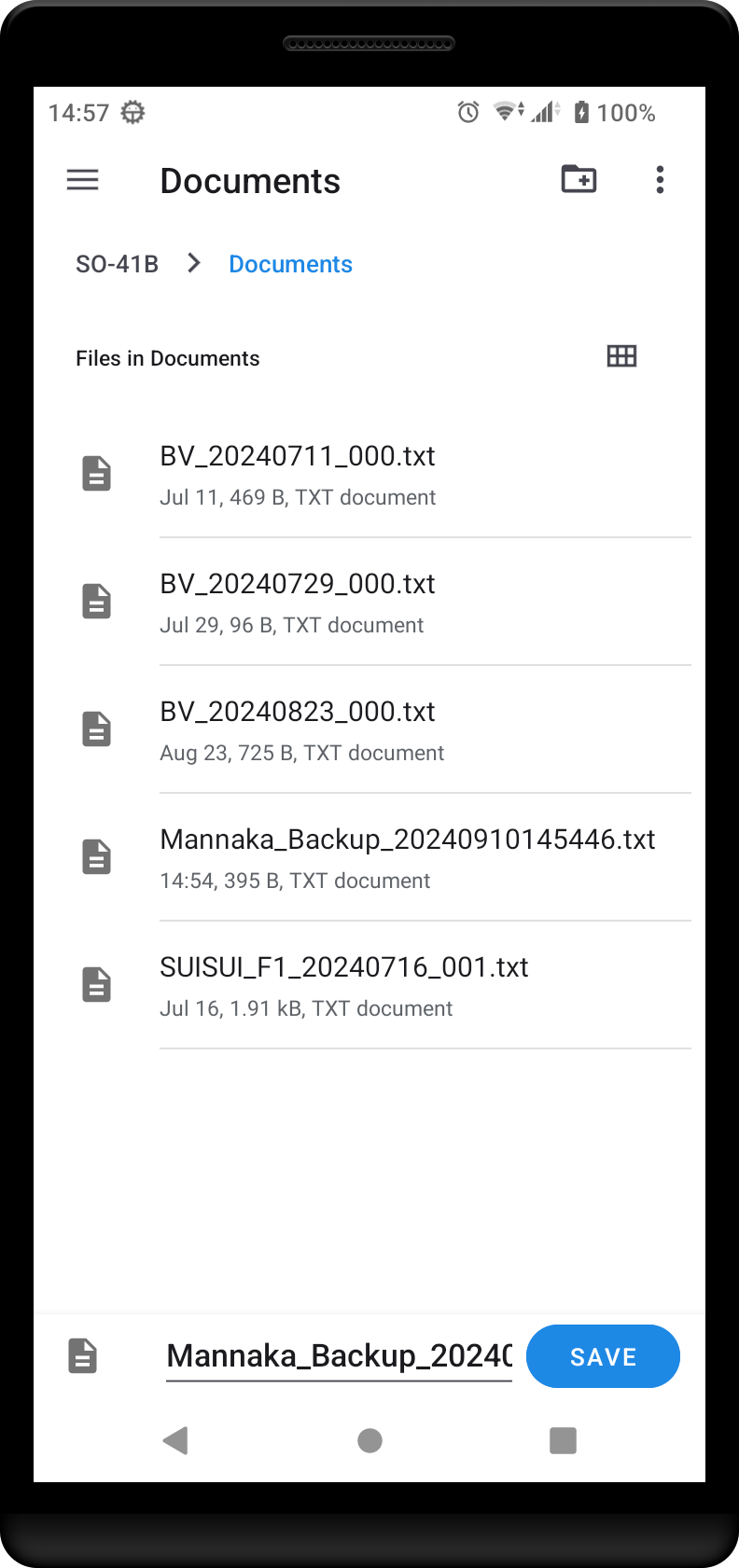
When you tap, after confirmation, the Save As dialog will appear. Specify the output folder and file name. Tap [SAVE] to output the entire history.
History restore
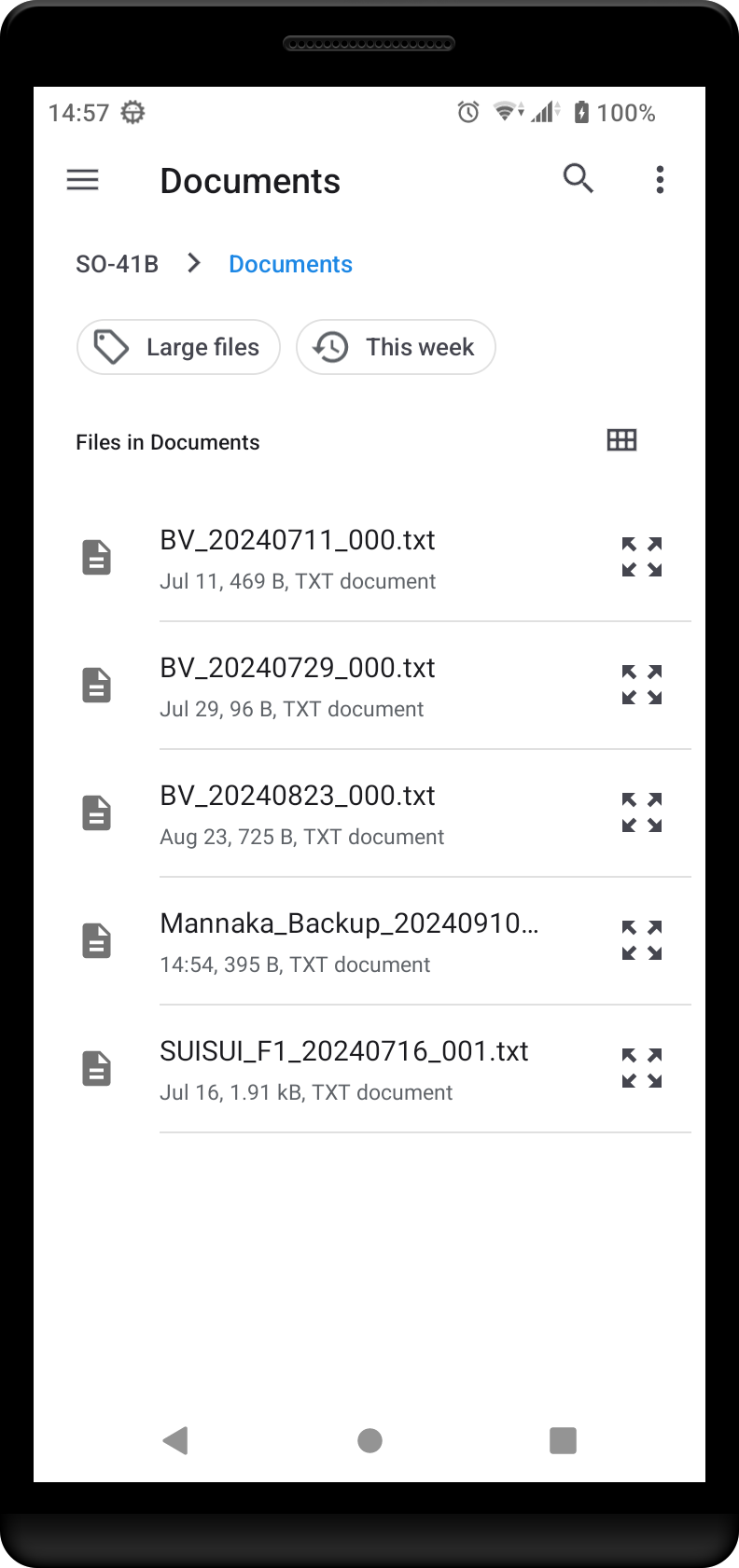
When you tap, a file open dialog will appear. Navigate the folder and tap the backup file you want to restore.
Since the restoration is an append method, if you do not need the existing history contents, please execute "History all delete" first.
Since the restoration is an append method, if you do not need the existing history contents, please execute "History all delete" first.
Advertisements using Google's [AdMob] are displayed at the bottom of the screen. The developer will block inappropriate ads, but please use your own discretion before tapping on them. The developer is not responsible for any damages resulting from the use of this app, including the content of the ads.
Settings
In version 1.0.4, we added a setting to automatically execute [Get TITLE from web] and [View in Browser] when scanning.
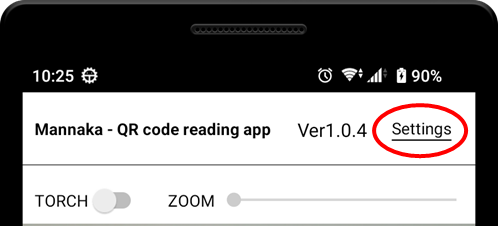 Tap [Settings] in the upper right corner of the screen to display the settings screen.
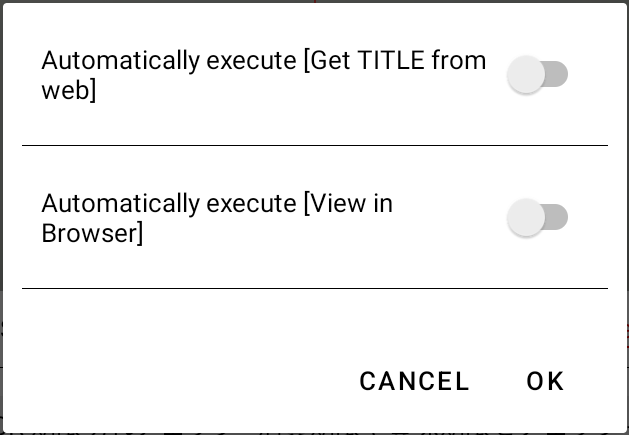 When you turn on each switch, they will be executed automatically when reading.
Finally, tap [OK] to save the settings.
Finally, tap [OK] to save the settings.
Reading Content Dialog Screen
It will be displayed when you read it and when you tap on the history line.
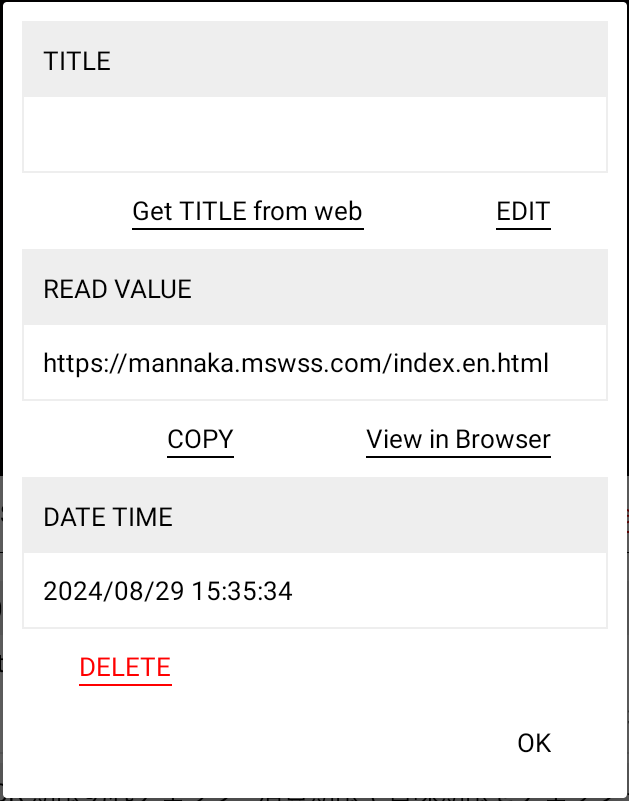 The following explains what is displayed on the screen.
TITLE
You can give a title to the reading content. This will allow you to know what URL it is when you look at the history later.
You can tap [Get TITLE from Web] under the title to get the title from the actual website.
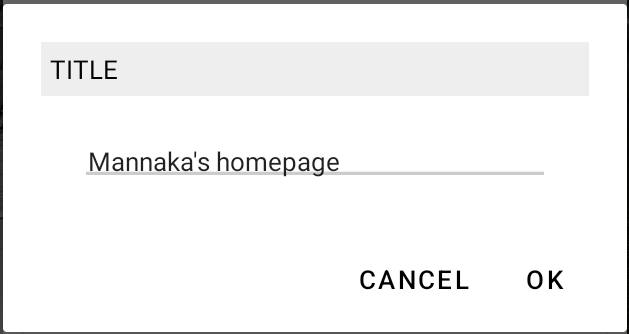
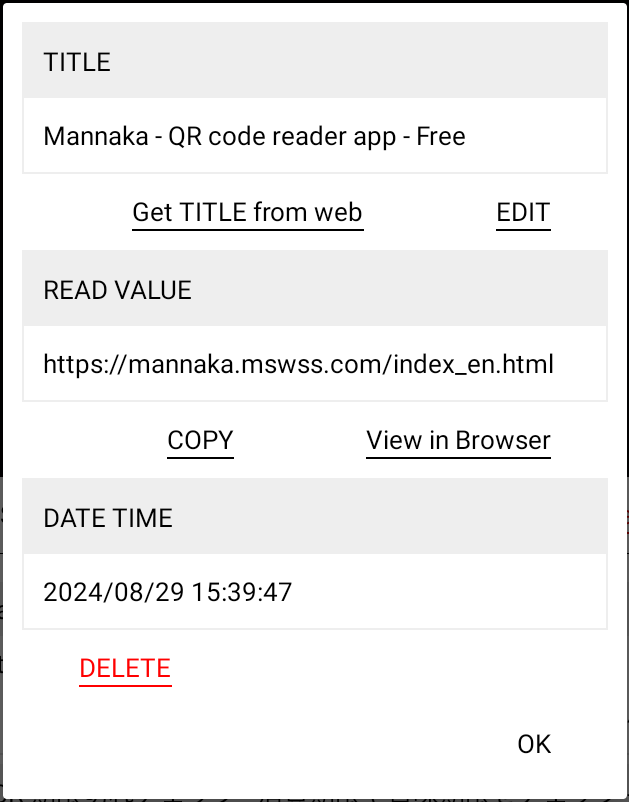 If you tap [EDIT] under the title, the title editing screen will appear, so use the software keyboard to give it a title. Finally, tap [OK] to update it.
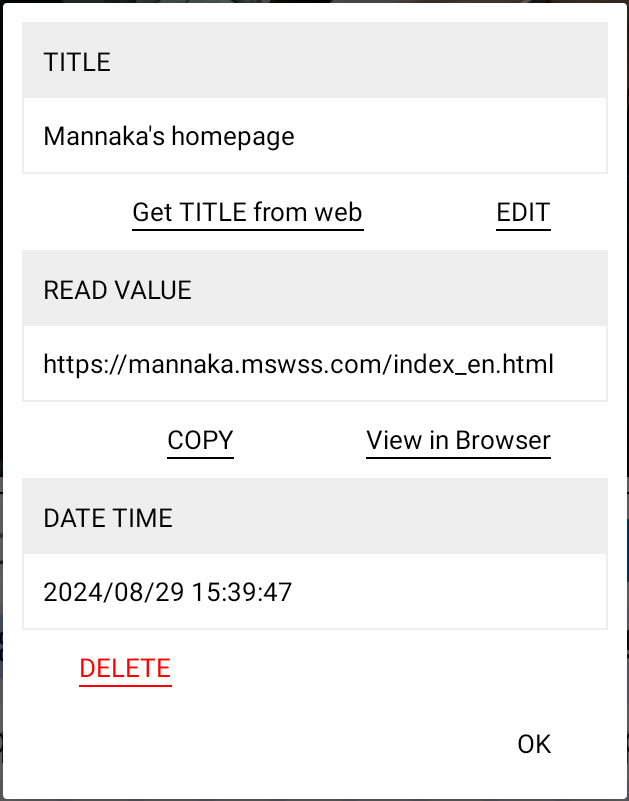
You can tap [Get TITLE from Web] under the title to get the title from the actual website.
READ VALUE
This is what's inside the QR code.
Tapping [COPY] below the READ VALUE will copy the READ VALUE to your clipboard.
If you tap [View in Browser] below the READ VALUE, if the READ VALUE is a URL, the URL will be displayed in the browser.
Tapping [COPY] below the READ VALUE will copy the READ VALUE to your clipboard.
If you tap [View in Browser] below the READ VALUE, if the READ VALUE is a URL, the URL will be displayed in the browser.
DATE TIME
The date and time the QR code was read.
DELETE
Tapping [DELETE] will delete the displayed the reading content from the history after confirmation.
OK
Tapping [OK] will close the dialog and return to the reading screen. The same action can be performed by tapping the back key on the device.
Copyright (C) 森山商店 All Rights Reserved.